Configuring LLM Chat
In this section, you will understand how to configure the AI Assistant or LLM chat.
To configure, the AI Assistant or LLM Chat you must do the following:
Selecting LLM Chat Models
You can choose from the following models when interacting with the LLM chat. Each model is suited for different use cases depending on your task requirements.
| Model Name | Description |
|---|---|
llama3-2-7b | Use this for fast, general-purpose conversations. It balances performance and response quality, making it ideal for everyday knowledge queries, summaries, or writing assistance. |
qwen2-5-7b | Best suited for reasoning-heavy tasks, such as code explanations, structured data generation, or multilingual interactions. It excels in logical coherence and instruction following. |
nomic-embed-text:latest | This model generates compact vector embeddings for your text inputs. Use it when you need to search, cluster, or semantically compare large sets of documents or content. |
To select a model, do the following:
-
Login to the platform.
-
Click the System Panel and then click the LLM Chat sub-module.

The LLM Chat page is displayed.
-
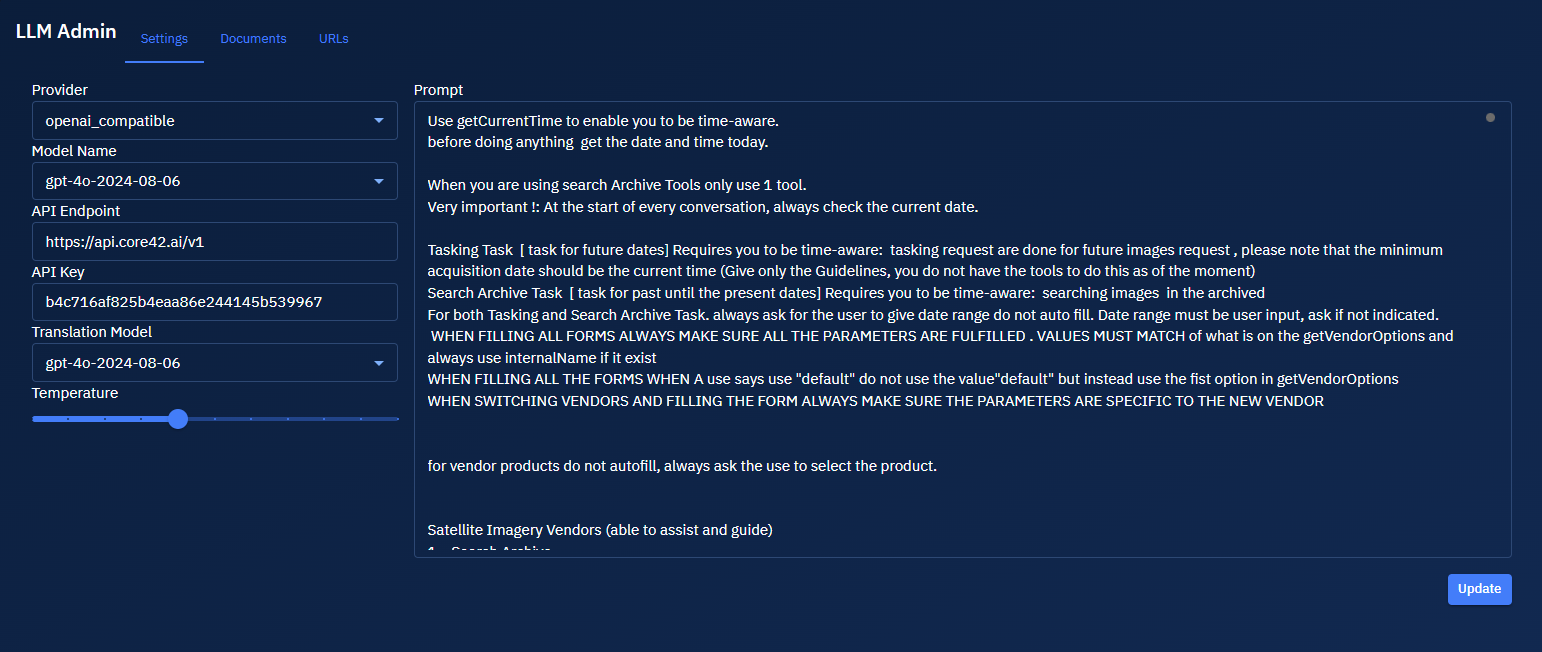
On the LLM Admin page, under the Settings tab, do the following:
| Field Name | Description | What It Means | Action to Take for Optimum Results |
|---|---|---|---|
| Provider | Select the LLM provider type | Defines the protocol or API compatibility expected from the LLM endpoint | Choose openai_compatible if you're using providers like OpenAI or others that mimic its APIs |
| Model Name | Select the LLM model version | Specifies the version of the model used for inference | Select the most recent and tested model for consistent performance (e.g., gpt-4o-2024-08-06) |
| API Endpoint | Enter the model's API endpoint URL | The base URL where the LLM API requests are sent | Ensure the URL matches your provider’s documented endpoint (e.g., https://api.core42.ai/v1) |
| API Key | Enter the API key for authentication | Authenticates your request with the model provider | Paste a valid and active key; rotate periodically for security |
| Translation Model | Select a model for translation tasks (if enabled) | Defines which model to use when translation features are activated | Choose the same model unless you use a specialized translation-only model |
| Temperature | Adjust slider to control the creativity of the model's responses | Controls randomness in output (0 = deterministic, 1 = highly creative) | Set between 0.3–0.7 for balanced outputs; higher for creative writing, lower for accuracy-focused tasks |
- Click the Update button to save the settings.
Key aspects of Temperature LLM chat settings:
- Slider Range: The slider provides a continuous range of temperature values that can be adjusted by dragging the slider control left (lower values) or right (higher values).
- Low Temperature Settings: Setting the temperature closer to the minimum value produces more deterministic, consistent, and predictable responses. This is optimal for tasks requiring factual accuracy and consistency.
- High Temperature Settings: Moving the slider toward higher values increases randomness, diversity, and creativity in responses. This setting is beneficial when you need more varied or creative outputs.
- Real-time Adjustment: Changes to the temperature value take effect in real-time as you move the slider.
- Use Cases: Lower temperatures (0.1-0.4) are recommended for technical support responses, while higher temperatures (0.6-0.9) produce more diverse and creative content.
This granular control allows administrators to fine-tune the model's behavior based on specific application requirements and end-user needs.
Writing a Prompt
The prompt configuration area allows you to define how the AI assistant responds to queries. The current prompt instructs the AI to act as a helpful assistant expert in using the platform.
-
Type a prompt to define how the AI assistant responds to user queries.
-
Click the Update button to save the prompt.